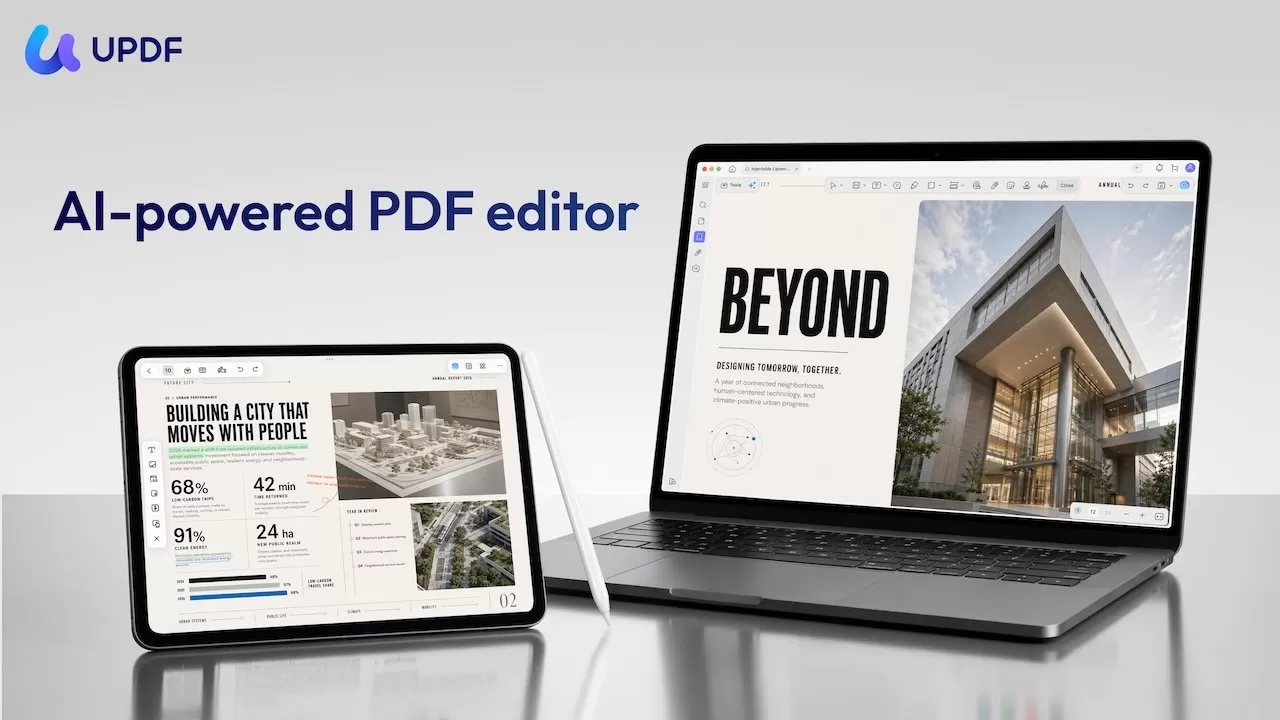
While Preview can do a lot to a PDF, sometimes you need more. UPDF can help with more advanced PDF capabilities, as a cheaper alternative to Adobe Acrobat.
Preview is useful, until a PDF becomes real work
Preview is a frequently used tool for Mac users, providing a quick and lightweight way to look at documents. It's also got editing capabilities, so you can mark up or add signatures to forms without much effort.
Though it is a capable tool, professional users who need to manage PDF documents have greater demands than a consumer.
If the content of a document needs to be edited, Preview isn't the best tool for the job. That goes the same for searching scanned papers, converting files, or even if you need to analyze masses of pages quickly.
In these cases and more, a specialized tool like UPDF should be a consideration.

UPDF PDF Editor
Five signs you have outgrown Preview
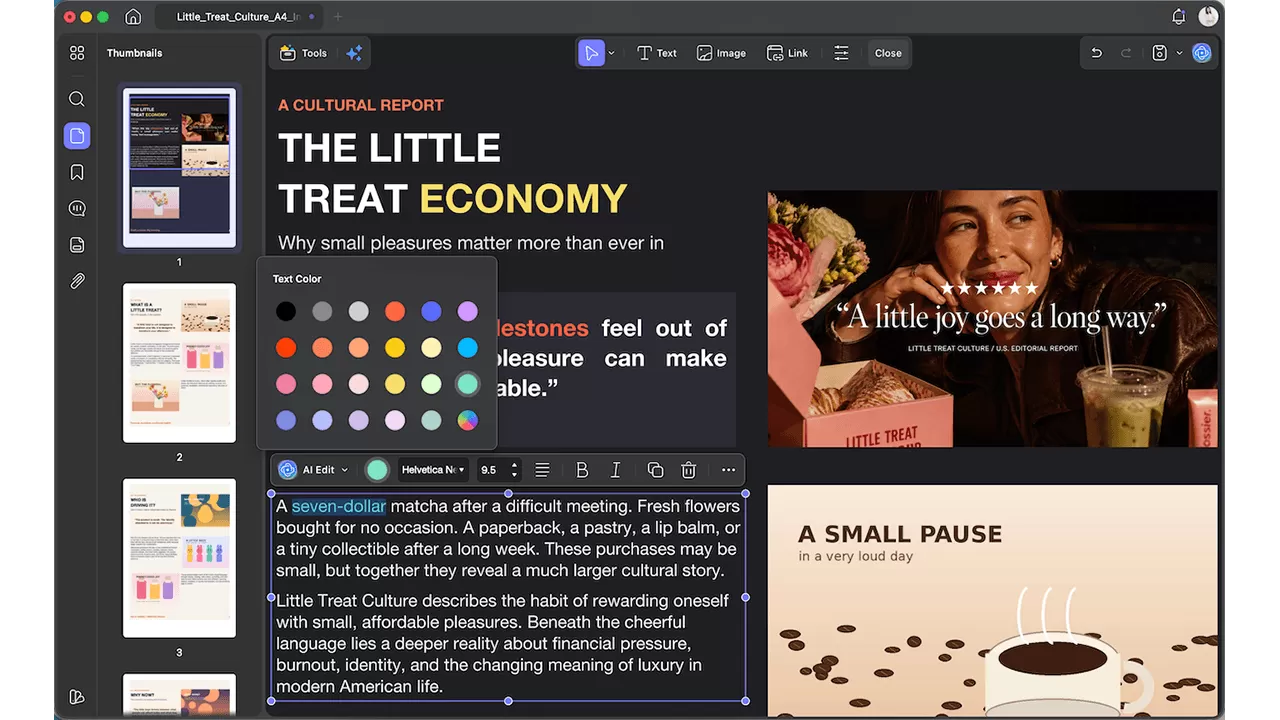
UPDF makes editing a PDF easy - Image credit: UPDF
For everyday PDF viewing and markup, Preview may be all you need. However, a dedicated PDF editor becomes easier to justify when documents are part of your regular work.
- You need to edit existing content.
Preview works well for annotations, but it is not designed for extensive changes to existing text, images, and links inside a PDF.
- You regularly handle scanned documents.
Contracts, invoices, forms, and archived records may arrive as image-based PDFs. OCR is needed to make their content searchable and editable.
- You need editable Office files.
Business information often needs to be reused. Converting a PDF into Word, Excel, or PowerPoint can be more efficient than recreating its content manually.
- You work with long documents.
Reports, manuals, contracts, and research papers can take considerable time to review. AI-powered summarization and document questions can help users locate important information more efficiently.
- You work across multiple devices.
A document may be edited on a Mac, reviewed on an iPad, and checked or shared from an iPhone. A consistent cross-device workflow helps keep the process organized.
UPDF addresses these requirements in one workspace, combining PDF editing, OCR, conversion, AI-assisted document analysis, organization, and cross-platform access.
UPDF helps your Mac-to-iPad PDF workflow
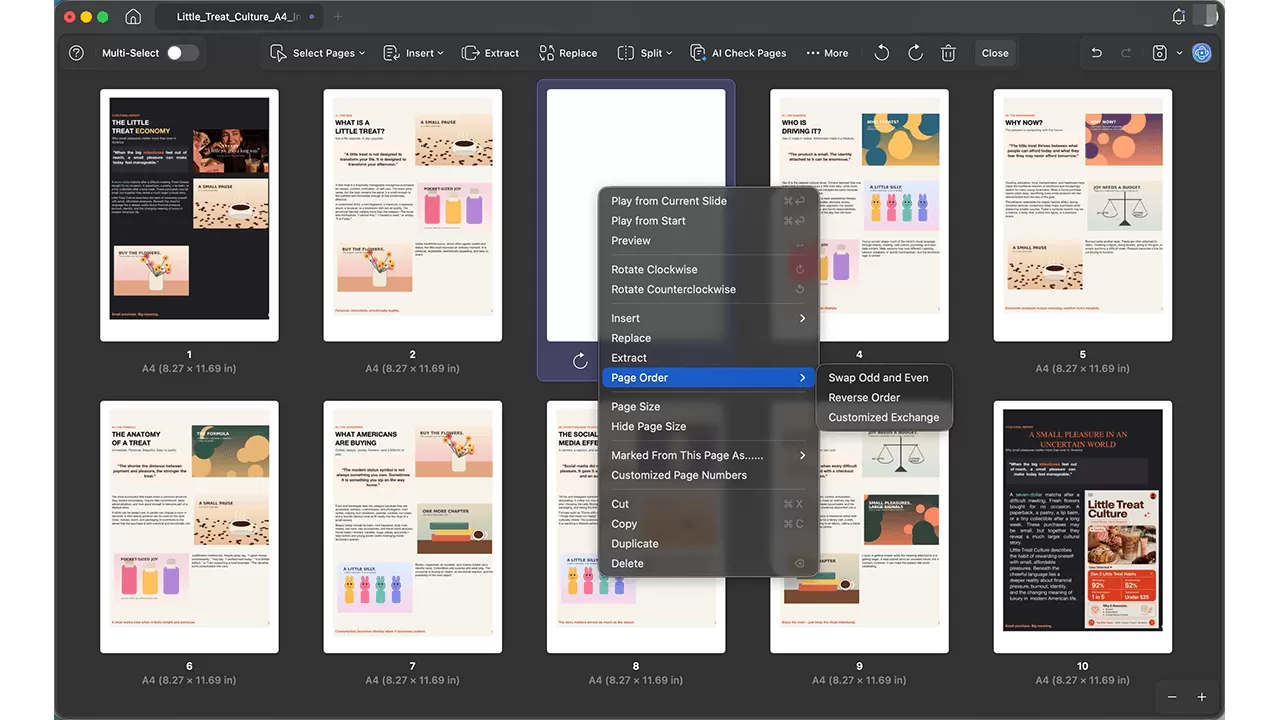
Organize pages with swap, reverse, and customized exchange capabilities - Image credit: UPDF
Consider a marketing team tasked with revising a lengthy client proposal that has been scanned and saved as a PDF.
After you download UPDF for Mac, you would open the file then use its optical character recognition (OCR) capabilities to convert the document into a more useful form. One that you can more easily search and edit than an image.
If there are any glaring issues or omissions in the report, this is a great opportunity to make those changes. Images can be switched for better and more relevant versions, while links and text can be updated and corrected in place.
At this point, you can use UPDF's AI to summarize the report, helping you identify the key data points and other information. This is great for creating a summary, and for understanding the overall report before editing commences.
Once changes have been made on the Mac, you can then review the document on an iPad, making any last-minute annotations as you read.
After that, all that's left is to organize the report, convert it to your required file format, protect it from changes, and share it with your colleagues.
All of this is handled just inside UPDF on your Mac and your iPad. There's no need to switch between multiple apps, which will only slow you down.
Use AI to understand documents, not just read them
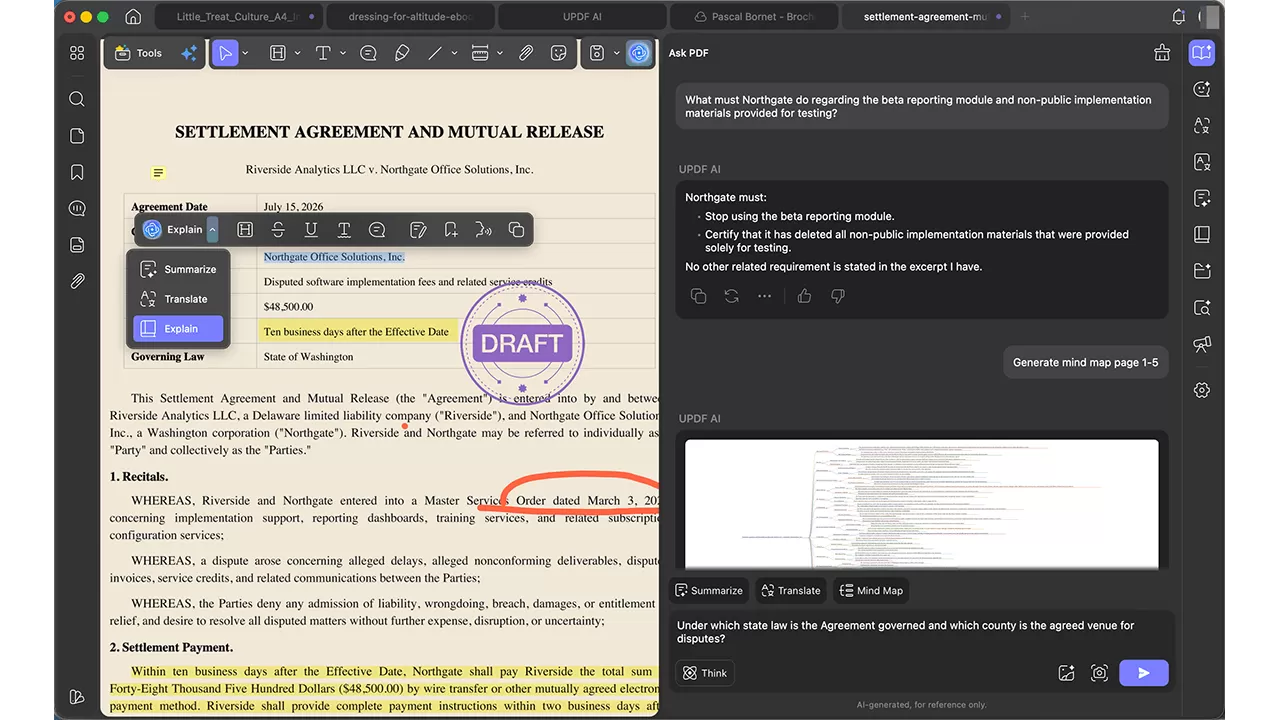
UPDF AI lets you quickly pull details from contracts, reports, and manuals.
One of the better uses of AI is to condense massive amounts of information into a more easily understandable form. With UPDF's AI, you get that benefit as well.
The UPDF AI can summarize a contract, report, or even manual to its most important and relevant elements. All so you can quickly understand what's going on.
It's especially helpful for information-dense documents, as you can quickly pull out details you could easily miss.
You can also ask the UPDF AI questions about the file's content, and in ways to help your understanding of it. If there are complex jargon-heavy passages, you can ask for a simplified, more understandable version.
A prompt like "Summarize the payment terms, renewal conditions, and termination risks in this agreement" can tell you the essential parts of a contract or proposal, without your having to comb through the document for them.
The professional PDF tool users still need
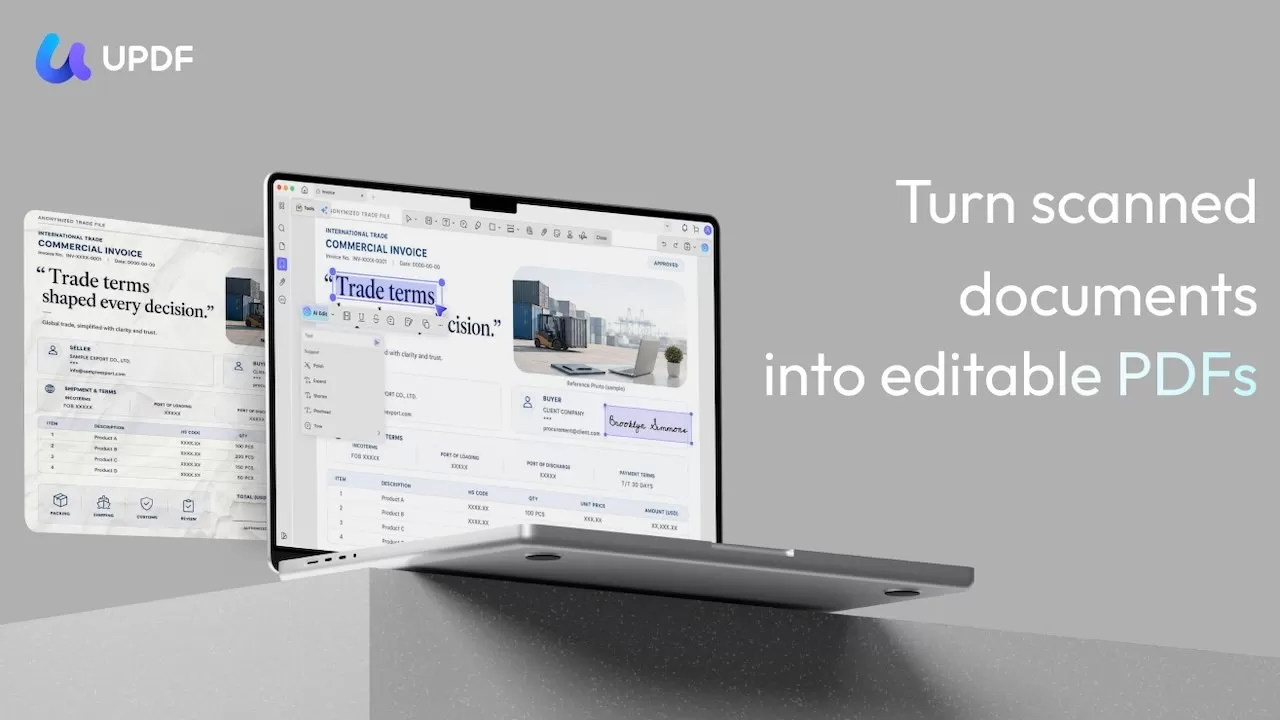
Convert scanned documents into a more editable format - Image credit: UPDF
While the inclusion of AI is very useful for a document-based tool, it's only part of the solution. UPDF is a complete PDF application.
You can use it to edit PDF files with text, images, and link updates. Far beyond simply using it to review or to fill out and sign PDF forms, though you can use it for that too.
Fixing a document is straightforward with these features, as well as adjusting the page order. You can combine, split, reorder, and extract pages, adding them into new PDF compositions to match your needs.
Scanned documents are also not a problem, thanks to its OCR features. The text and data on the scan can be converted into a much more editable format, making it ideal for handling reports.
UPDF's batch-processing tools can also reduce repetitive document work. A marketing agency, for example, could add a branded or "Client Review" watermark to multiple campaign reports, compress the completed files to make them easier to email, and then share them with clients.
The same workflow can benefit legal teams protecting case files, HR departments preparing employee documents, finance teams distributing reports, and consultants delivering proposals to multiple clients. UPDF supports batch operations including watermarking, compression, OCR, conversion, encryption, and document organization, allowing users to process groups of PDFs instead of handling every file individually.
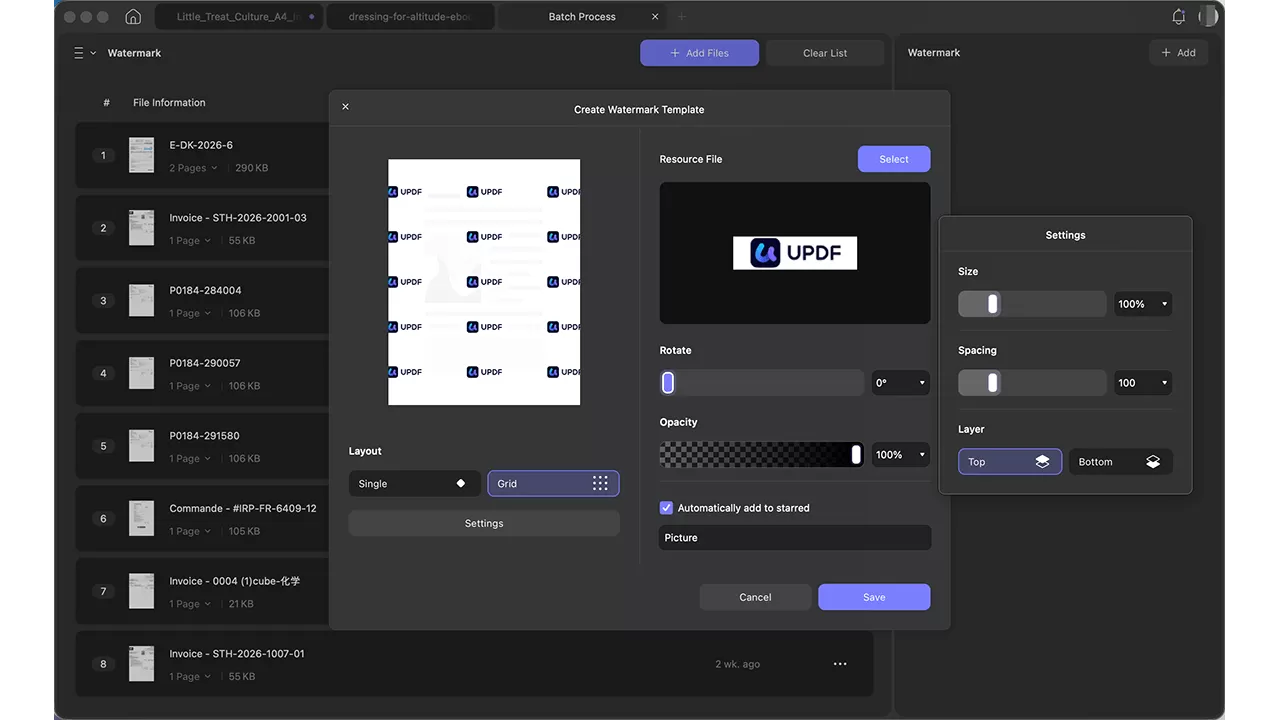
UPDF supports batch operations, including watermarking - Image credit: UPDF
One PDF workflow across Mac, iPad, and iPhone
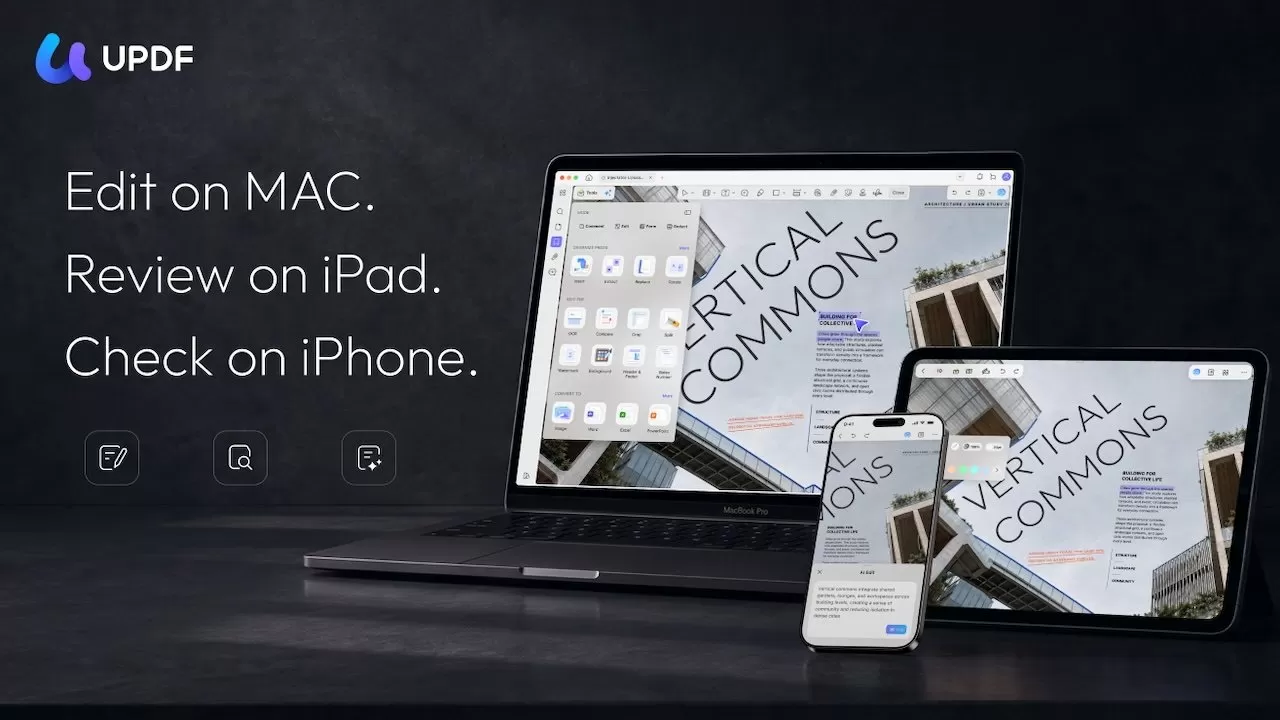
UPDF works across Apple devices - Image credit: UPDF
While you may edit a proposal on a Mac, you could always review it on an iPad and sign on the dotted line with an Apple Pencil. If you have to check the report and send it off at lunch, you could even do that on an iPhone.
UPDF has a consistent workflow that exists across all of your devices. You're not switching between different apps depending on your hardware, as UPDF works across platforms.
- Download UPDF for iPhone and iPad
If your hardware collection includes devices not made by Apple, you're also covered by UPDF's Windows and Android apps.
It also means you don't have to worry about licenses for separate platforms, as one UPDF purchase covers multiple devices.
A cost-conscious alternative for frequent PDF users
Preview is certainly a good tool for getting essential tasks done. But for those who need to regularly edit files or need to summarize documents, there is certainly a case to getting UPDF.
For professionals who handle PDFs every day, the time saved across editing, OCR, conversion, and review can quickly justify the cost.
UPDF Pro is $45.99 for the annual plan or $75.99 for the lifetime version. This gives access to all of the PDF-editing, conversion, and OCR features, as well as cloud storage.
The lifetime option is a good idea if you plan to use UPDF in the long term, with no ongoing subscriptions.
If you want the AI functionality, UPDF AI Assistant is $29.00 quarterly or $79.00 annually. This includes the summarizing, translation, and analysis of your documents, with unlimited usage.
Yes, you can get by with Preview, and many people will do so. But, if you handle PDFs every day, using the tools and AI of UPDF in one dedicated workspace could be very advantageous.
UPDF for Professional Teams and Businesses
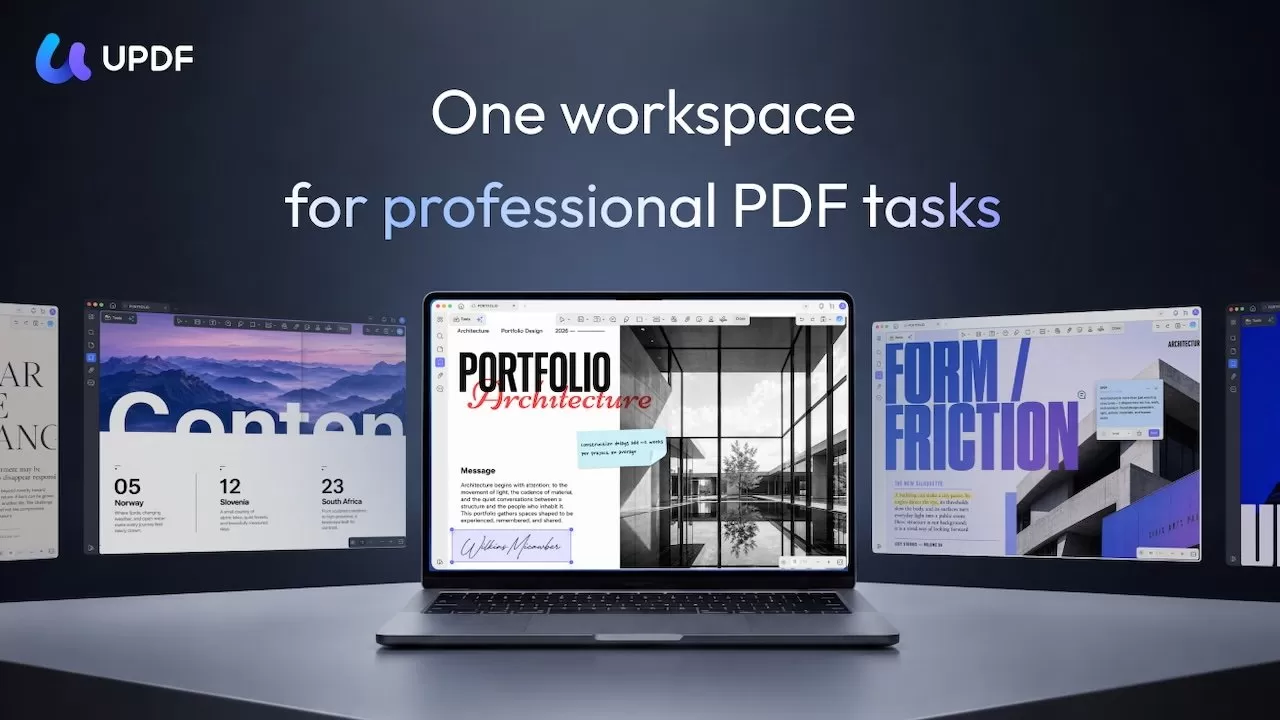
One tool simplifies performing multiple professional PDF tasks - Image credit: UPDF
While there's a lot of utility for individuals, there's more that can benefit enterprise users and departments like sales, HR, or legal.
Using one tool across the entire team means you can standardize ways of working. Processes can be kept the same across multiple employees, which improves overall workflow.
It also grants access to many common editing, OCR, and review tools to all team members. Even if they're using a mix of Mac and Windows devices.
Standardization can also cut down the need to rely on multiple different vendors for PDF tools. With volume licensing, there can be a very real financial benefit to having the entire team using the same PDF app.
A viable alternative to Preview
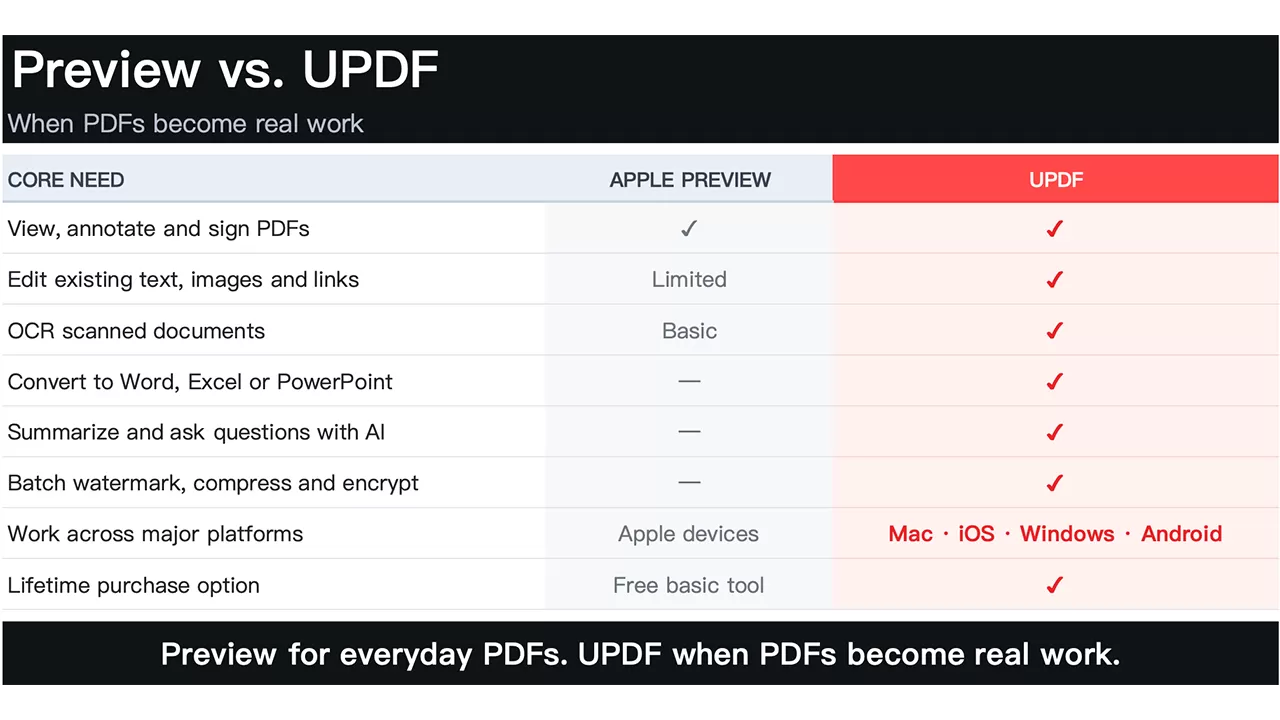
UPDF offers a robust feature set - Image credit: UPDF
Preview is an essential tool for Mac users, thanks to being ever-present and included as part of macOS. While it covers a lot of essential uses, there are always going to be instances where it's not quite enough for the task.
UPDF is designed for users who appreciate Preview's simplicity but need professional editing, OCR, conversion, AI, and cross-device capabilities.
At the time of publication, you can get UPDF under a limited offer that discounts each plan.