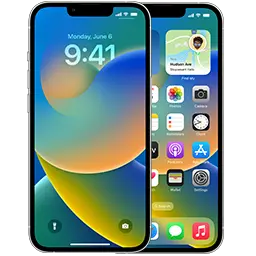
An IPSW is the full software package Apple uses to install iOS and iPadOS. Installing one manually helps when an over-the-air update keeps failing, when the device is stuck in a boot loop, or when you want a completely clean install.
What you need
- A Mac with macOS Catalina or later (uses Finder), or a Windows PC with Apple Devices (Windows 10/11) or iTunes.
- A good USB cable.
- The correct IPSW for your exact model. Use Identify if you’re unsure — a file for the wrong model will be rejected.
- A version Apple is currently signing. Check the signing status page.
Step 1 — Download and verify the IPSW
Open your device page from the iPhone or iPad list and download a signed version. The file comes straight from Apple. Optionally compare the checksum shown on the firmware page:
- Mac:
shasum -a 256 ~/Downloads/file.ipsw - Windows:
certutil -hashfile file.ipsw SHA256
Safari on some Macs unzips IPSW files automatically. If you end up with a folder or a .zip, turn off Open “safe” files after downloading in Safari settings and download again.
Step 2 — Update or restore?
- Check for Update keeps your apps and data. It only works with a version newer than the one installed.
- Restore erases everything and installs a clean copy. Back up first and turn off Find My.
Step 3 — Install
- Connect the device and unlock it. Tap Trust This Computer if asked.
- Mac: open Finder and select the device in the sidebar. Windows: open Apple Devices or iTunes and click the device icon.
- Hold Option (Mac) or Shift (Windows) and click Check for Update or Restore iPhone.
- Select the IPSW file and confirm.
- Wait. The device restarts several times. Don’t unplug it until you see the Hello or lock screen.
If the device won’t show up
Put it in recovery mode or DFU mode, then repeat step 3 — the computer will offer Restore directly.
Common errors
- “This device isn’t eligible for the requested build” — the version is no longer signed. Pick a signed one.
- Error 4013 / 4005 / 9 — usually the cable, USB port or hub. Use a direct port and another cable; on Windows, update Apple Devices.
- Error 3194 — the computer can’t reach Apple’s signing server. Check the hosts file and VPN or firewall settings.
- “The iPhone could not be restored. The file is corrupt” — download again and verify the checksum.